
Globe SIM Registration ID Rejected: How to Correct It
If your Globe SIM registration ID got rejected, don’t worry — you aren’t alone. This happens when the verification system can’t read or accept your ID submission. Most of the time, the fix is easy and only takes a couple of minutes.
Below, you’ll find clear reasons ID gets rejected, exact steps to fix it, what to avoid, and FAQs to make sure your next submission goes through smoothly.
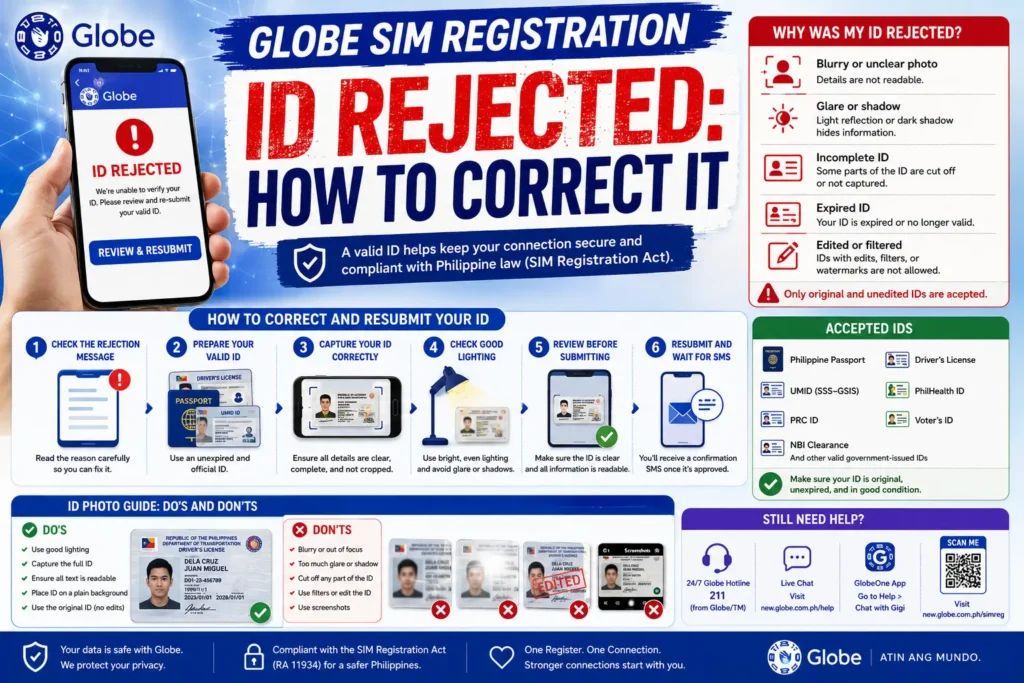
Why Globe Requires an ID for SIM Registration
Before we get into solutions, it helps to understand why ID verification matters:
Globe SIM registration is required by law in many countries to:
The Globe system uses automatic image scanning and verification software. If something in your photo is unclear, incomplete, or doesn’t match your details, the system may reject it.
That’s where most rejections occur — but they’re usually fixable.
Exactly Why Your ID Photo Was Rejected
Here are detailed reasons with examples and corrections you can make.
Blurry or Out‑of‑Focus Photo
Example: The letters on your ID look fuzzy.
Why It Happens: Camera shake, low light, or smudged lens.
How to Fix It:
Clean the camera lens before taking the photo
Tap the screen to focus on the ID
Hold your phone steady with both hands
Use a table or flat surface to rest your elbows
Tip: Take a few photos and choose the sharpest one.
Part of the ID Is Cut Off
Example: The number or name section isn’t fully visible.
Why It Happens: You’re too close or didn’t frame the whole card.
How to Fix It:
Tip: Position the card horizontally on a flat surface and shoot from above for best results.
Glare or Shadows Block Important Details
Example: Bright reflection hides letters or numbers.
Why It Happens: Direct overhead light or flash reflections.
How to Fix It:
Use natural light from a window
Avoid flash if possible
Tilt the ID slightly to reduce glare
Use indirect lighting
Tip: A white sheet diffuses harsh light and reduces reflections.
Wrong Type of ID Uploaded
Each country has a list of acceptable IDs (passport, driver’s license, national ID, etc.). If you upload an unsupported document, the system won’t accept it.
How to Fix It:
Tip: If you’re not sure if your ID is supported, use your passport or national ID card — these are almost always accepted.
Mismatch Between Your ID and Your Form Details
If your name, birthdate, or ID number on the registration form doesn’t exactly match the ID photo, the system will reject it.
How to Fix It:
Double‑check every field before submitting
Make sure spelling matches letter for letter
Check that the ID number is correct
Tip: Even small errors like missing hyphens or extra spaces can trigger rejection.
Old or Damaged ID Card
Example: Text is faded, scratched, or hard to read.
Why It Happens: Age of the card or wear and tear.
How to Fix It:
Tip: Digital copies or scans of damaged cards often fail — use a clear physical photo instead.
How to Take a Perfect ID Photo — Step‑by‑Step
Follow this simple checklist, and your ID submission is more likely to be approved:
Choose a Clean Background
Use a plain light background (white or neutral color).
Avoid patterned or cluttered backgrounds.
Use Good Lighting
Best options:
Near a window with indirect daylight
Soft lamp light from the side
Avoid:
Direct flash reflections
Strong shadows
Place the ID Flat
Lay the ID card on a flat surface — don’t hold it in your hand.
Step 4 — Focus and Shoot
Tap the ID on your screen to autofocus
Keep the entire ID card inside the frame
Take multiple photos
Review Before Upload
Zoom into the image and check:
Text is readable
No glare or shadows
Full card visible
Tip: If you can’t read the details in your own photo, the verification system definitely won’t.
Tips to Keep Your Photo Upload Safe and Smooth
If Your ID Still Gets Rejected
Even after all corrections, you might still get a rejection. Here’s what to do:
Wait a Few Minutes Before Trying Again
The system may temporarily block too many resubmissions.
Try a Different Device
Another phone with better camera photo quality can help.
Ask a Friend for Help
A second person can help you frame and steady the shot.
Contact Globe Customer Support
If nothing works:
Globe Help Center
Support Email / Chat
Live agents can manually review your submission. You can also read: Globe SIM Registration Selfie Rejected? Common Reasons
Have your details ready:
Your phone number
Registration reference (if available)
Screenshot of error message
The ID photo you’re trying to submit
FAQs
Final Words
Getting your ID rejected during Globe SIM registration can feel annoying, but most causes are easy to fix — lighting, framing, clarity, and detail matching are the biggest factors.
Just follow the practical steps above, and your next submission is likely to be accepted quickly.


