
Globe eSIM Registration 2026: Full Guide for Locals and Tourists
Gone are the days of tiny physical SIM cards — with eSIM, you can connect instantly using a digital SIM built into your device. Whether you’re a local living in the Philippines or a tourist visiting, this guide walks you through everything you need to know to get started in 2026.
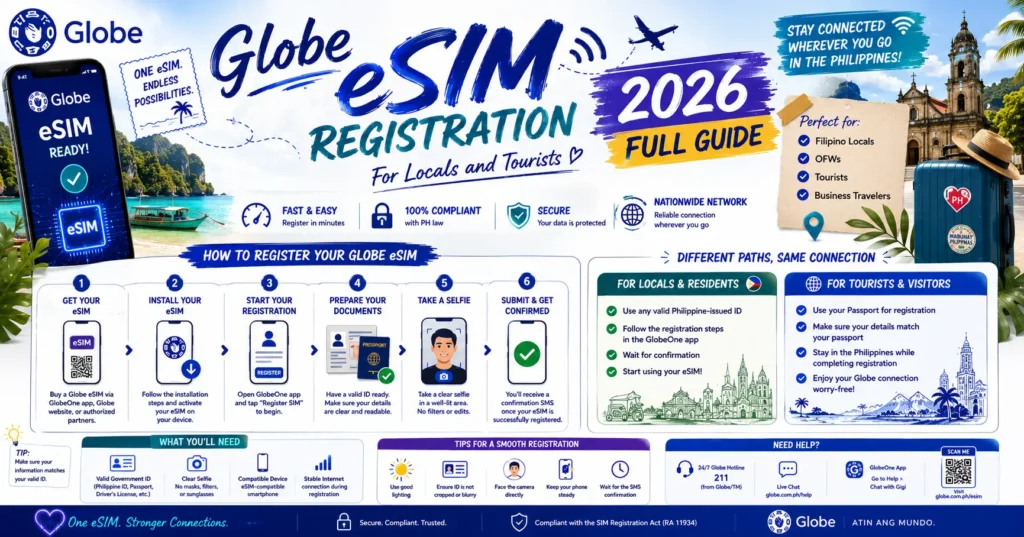
What is a Globe eSIM?
An eSIM (embedded SIM) is a digital SIM card that lives inside your phone or device — no need to insert or replace physical cards. Once activated, it lets you use Globe’s network just like a regular SIM.
Key Benefits
No physical SIM required — perfect for phones without SIM trays.
Fast activation via QR code or app.
Multiple profiles can be stored on supported devices.
Easy travel setup — great for tourists.
Who Can Use a Globe eSIM in 2026?
Locals / Philippine Residents
Globe eSIM is available for both prepaid and postpaid customers. You can either:
Buy a new eSIM line, or
Convert your existing Globe SIM to eSIM using the GlobeOne app or at a Globe store.
Note: Some users report system delays or mixed messaging about prepaid conversion in app or stores, so don’t worry if you hit a snag — customer care can help.
Tourists / Visitors
Globe offers a Prepaid Traveler eSIM designed especially for visitors to the Philippines. You can:
Install it before arrival, or
Buy and activate it once you land (for example, at airports).
This means you’re connected as soon as you arrive — no searching for a shop.
How to Check if Your Phone Supports eSIM
Before doing anything, make sure your device is compatible:
Most modern iPhones, Pixel phones, Samsung Galaxy models, and other flagship devices support eSIM.
How to Buy and Register a Globe eSIM (Step‑by‑Step)
The process differs slightly for locals and tourists — here’s both:
For Locals (Prepaid or Postpaid)
Option 1: Through GlobeOne App
Open the GlobeOne app.
Go to SIM Services or All SIMs.
Choose Change to eSIM or Buy Prepaid eSIM.
Follow the on‑screen steps and pay (if there’s a fee).
You’ll receive a QR code via email or in the app.
Scan the QR code in your phone’s eSIM setup screen.
Confirm activation.
Option 2: At Globe Store
Visit any Globe store with your valid ID and device.
Staff can issue an eSIM voucher or send your QR code.
Scan the QR code and activate it on your device.
Tip: If you’re converting a physical SIM to eSIM and want to keep your number, make sure you choose “Change to eSIM” and not “Buy a new one.”
For Tourists (Traveler eSIM)
Tip: Buying before arrival saves roaming charges and makes getting connected easier.
How to Activate Your Globe eSIM
Once you have the QR code:
On iPhone
Go to Settings > Cellular.
Tap Add eSIM or Add Cellular Plan.
Scan the Globe eSIM QR code.
Follow the on-screen setup.
On Android
Go to Settings > Connections > SIM card manager.
Tap Add Mobile Plan > Scan Carrier QR Code.
Scan the code and confirm.
Once activated, your eSIM will show your Globe number, and you can start using data, calls, and SMS.
Registration & Verification Requirements
In the Philippines, all SIMs — including eSIMs — must be registered under the SIM Registration Act. This links your SIM to your identity.
To register your eSIM:
After completion, you’ll receive a reference number confirming your registration. You can also read: Globe SIM Registration ID Rejected: How to Correct It
Troubleshooting eSIM Issues
QR Code Lost or Deleted
Request a new eSIM QR code via the GlobeOne app or visit a Globe store.
eSIM Doesn’t Connect
Make sure your device is compatible, and eSIM is selected in settings.
Turn on mobile data and disable roaming if unwanted.
Activation Not Working
Sometimes there may be delays activating eSIM on the network, even after installation — restarting your device or trying again later can help.
Switching Devices
You can reinstall your eSIM on another device up to a certain number of times. If you lose access or can’t transfer, Globe support or store assistance may be needed.
FAQs
Final Words
Always check device compatibility before buying an eSIM.
Use the GlobeOne app — it’s the easiest way to buy, install, and register.
Save your reference number after registration.
Keep your valid ID and selfie ready — registration is mandatory.


