
Globe eSIM Registration Troubleshooting for Visitors
If you’re visiting the Philippines and trying to register a Globe eSIM, you might run into issues such as OTP not received, selfie verification failing, or QR code problems. Don’t worry — these problems are common and usually easy to fix.
This guide explains common eSIM registration issues for visitors, step-by-step fixes, and tips to ensure a smooth setup.
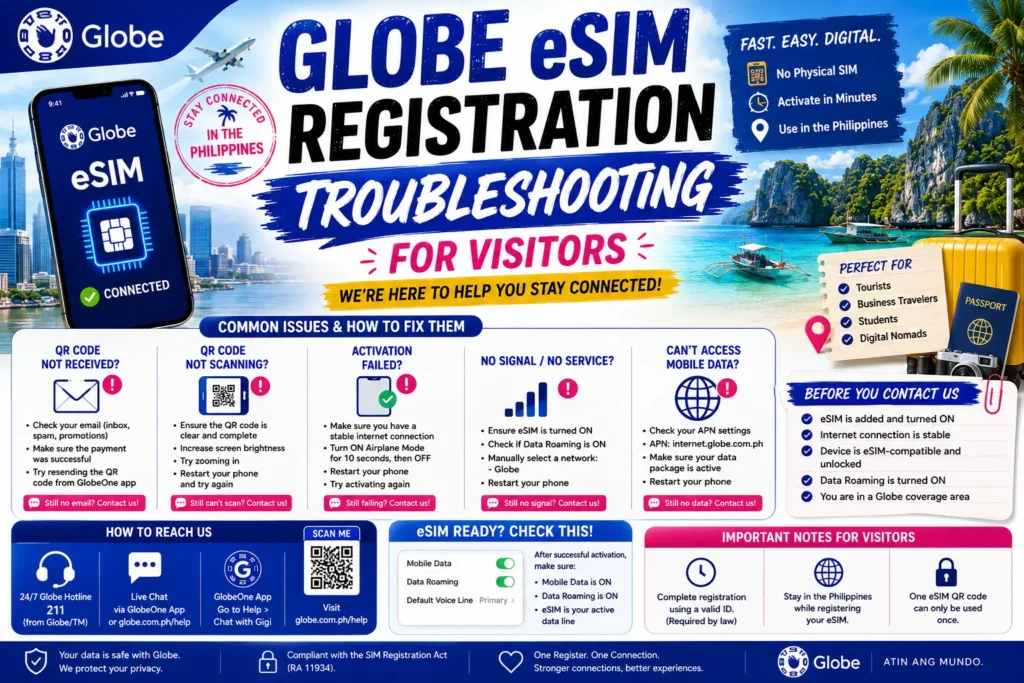
Common Globe eSIM Registration Issues for Visitors
OTP (One-Time Password) Not Received or Expired
The OTP is required to confirm your phone number. If it doesn’t arrive, the system can’t verify your SIM.
Common Causes:
Weak mobile signal or poor network coverage
Delays due to high traffic on Globe servers
Waiting too long to enter the OTP
Solutions:
Check your mobile signal and move to a location with better coverage.
Wait 1–2 minutes and request a resend of the OTP.
Enter the code immediately once received.
Restart your phone or toggle airplane mode to refresh the network connection.
Selfie Verification Failed
Your selfie is used to verify your identity against your passport or ID. Failure usually happens when the system cannot clearly detect your face.
Common Causes:
Solutions:
Use bright, even lighting — natural light is best.
Remove hats, sunglasses, or masks.
Hold your phone steady or use a support to prevent blurring.
Keep a neutral facial expression and face the camera directly.
Take multiple selfies and upload the clearest one.
QR Code Issues
The QR code is used to activate your eSIM on your device. Problems can occur if it doesn’t scan properly.
Common Causes:
Poor lighting or glare on the QR code
Camera unable to focus properly
Damaged or incorrect QR code
Solutions:
Ensure the QR code is well-lit and fully visible.
Hold the phone steadily while scanning.
If scanning fails, request a new QR code via the GlobeOne app or store.
App Not Syncing
Sometimes the GlobeOne app or registration portal fails to update your eSIM status.
Common Causes:
Solutions:
Ensure you have a stable internet connection.
Close the app completely and reopen it.
RClear the app cache (Settings > Apps > GlobeOne > Clear Cache).
Update the app to the latest version.
If using a browser, try switching browsers (Chrome, Firefox, Safari).
Step-by-Step Tips for Visitors
Always carry your passport for verification.
Ensure your device supports eSIM before purchase.
Use the GlobeOne app for easy registration, activation, and plan management.
Purchase traveler-friendly eSIM packages with data, calls, and SMS suitable for your stay.
Save the QR code and registration details in case you need to reinstall the eSIM.
You can also read: Can a Foreigner Use Globe eSIM in the Philippines?
FAQs
Final Words
Globe eSIM registration for visitors can encounter minor issues, but most can be fixed quickly with correct lighting, a stable network, and proper verification documents. Following the steps above ensures a smooth activation process, letting you stay connected effortlessly during your visit.


