
How to Register Globe SIM Using a Feature Phone
How to Register Globe SIM Using a Feature Phone is required in the Philippines before a new SIM can be fully activated for calls, texts, and mobile data. Many users think they need a smartphone to complete the process, but you can still register your Globe SIM even if your main phone is a basic keypad or feature phone. The important thing is that your feature phone can receive the OTP text message, while the online form can be completed using another device such as a borrowed smartphone, tablet, laptop, or desktop computer.
A feature phone usually cannot upload photos, open modern websites properly, or take clear ID/selfie images for online registration. Because of this, the best method is to keep the Globe SIM inside your feature phone to receive the verification code, then use an internet-connected device to finish the online registration form.
Need Before Registering
Globe SIM Registration Through SMS required in the Philippines , prepare your Globe mobile number, a valid government-issued photo ID, your personal details, and a clear selfie. You may be asked for your full name, date of birth, gender, address, nationality, and ID type. Make sure your ID is not expired and that the photo or scanned copy is clear. You also need access to the official Globe SIM registration portal through a browser. Since a feature phone may not support the portal properly, use another phone or computer with internet access. Your Globe SIM must be active enough to receive SMS because the One-Time PIN, or OTP, will be sent to that number.
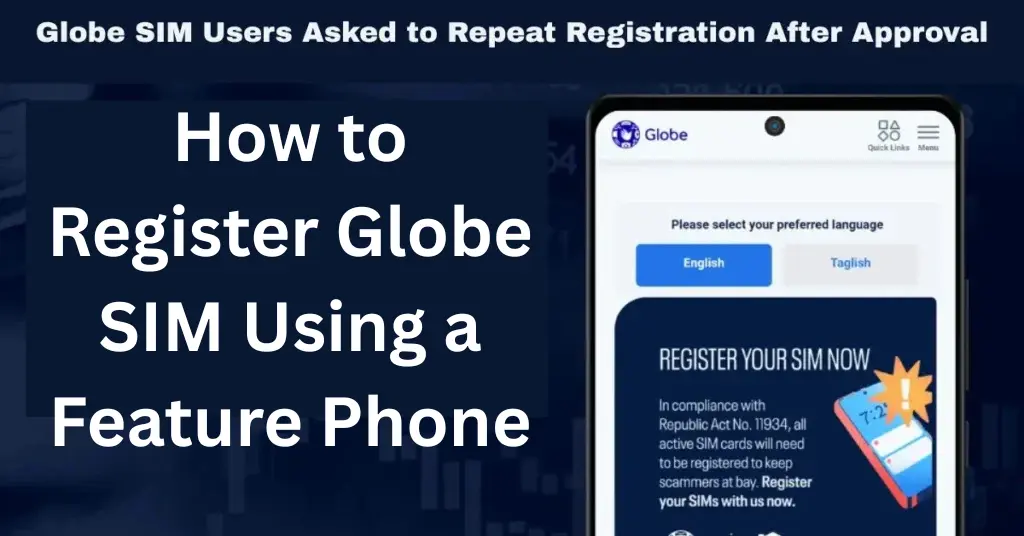
Guide to Register Globe SIM Using a Feature Phone
Insert the SIM into Your Phone
Put your Globe SIM into your feature phone and turn it on. Wait until the phone shows a signal. If there is no signal, move to another area or restart the phone. You need signal reception because Globe will send the OTP through SMS. On the registration page, enter your 10-digit Globe mobile number. For example, if your number is 09171234567, you may need to enter it as 9171234567, depending on the form instruction. Click the register button to continue.
Wait for Signal
Use a smartphone, laptop, desktop computer, or tablet with internet access. Open a browser and go to the official Globe SIM registration page. Avoid unofficial links, social media messages, or random websites asking for your personal information. The registration page will ask you to upload a valid government ID and a selfie. Since a feature phone may not support this step, use the camera of the smartphone, tablet, or computer you are using for registration. Take a clear photo of your ID and a clear selfie. Make sure the details on the ID are readable.
Receive the “Welcome to Globe” Text
Once the OTP is accepted, complete the online form. Enter your correct personal details, including your full name, birthday, gender, address, and nationality. Double-check spelling and numbers because wrong information may cause registration problems later. Before submitting, review all the information you entered. Tick the required consent or agreement boxes after reading them. Then click submit to complete the registration process.
Dial 143# or Use the GlobeOne App
However, some postpaid users may receive a message from Globe asking them to confirm their registration details. In that case, Globe may instruct them to text SIMREG to 8080. This is mainly for confirming existing postpaid information, not for completing a new prepaid registration from scratch. For most prepaid Globe SIM users, registration is not completed by text only. The OTP is received through SMS, but the actual registration form must be completed online because it requires personal details, a selfie, and an ID upload.
Common Problems and Fixes
If you only have a feature phone and do not have access to a smartphone, computer, or internet connection, the safest option is to ask a trusted family member to help you register using their device. You can also visit a Globe store or authorized assistance point for help. Bring your feature phone, Globe SIM, valid ID, and any required information.
If you do not receive the OTP, check if your feature phone has signal. Make sure the SIM is inserted correctly and the inbox is not full. You may also restart the phone and request a new OTP from the registration page.
If the website does not load, use a better internet connection or try a different browser. If the ID upload fails, take a clearer photo, reduce the file size if needed, and make sure the ID is valid and readable. If your details are rejected, review your information carefully. The name and birthdate should match your valid ID. Avoid nicknames, wrong addresses, or unclear images.
After entering your number, Globe will send a 6-digit OTP to your feature phone by SMS. Open the message inbox on your feature phone and read the code carefully. The OTP is time-sensitive, so enter it on the registration website as soon as possible.
Final Words
Registering a Globe SIM using a feature phone is possible if you understand the role of each device. Your feature phone is mainly used to receive the OTP, while another internet-connected device is used to complete the online registration form, upload your ID, and submit your selfie. Always use the official Globe registration page and protect your personal information. Do not share your OTP with strangers, and keep your reference number safe after completing the process


