
How to Fix Browser Issues on Globe SIM Portal
The Globe SIM portal is a convenient online tool that allows you to manage your Globe services, check your balance, activate promos, and more. However, sometimes users encounter browser issues that prevent them from accessing or using the portal effectively. These issues can be frustrating, especially when you’re trying to complete important tasks like SIM registration or checking your data usage.
If you’re experiencing browser-related problems on the Globe SIM portal, don’t worry! In this article, we’ll guide you through the common browser issues that can occur, their causes, and step-by-step solutions to fix them so you can use the portal without hassle.
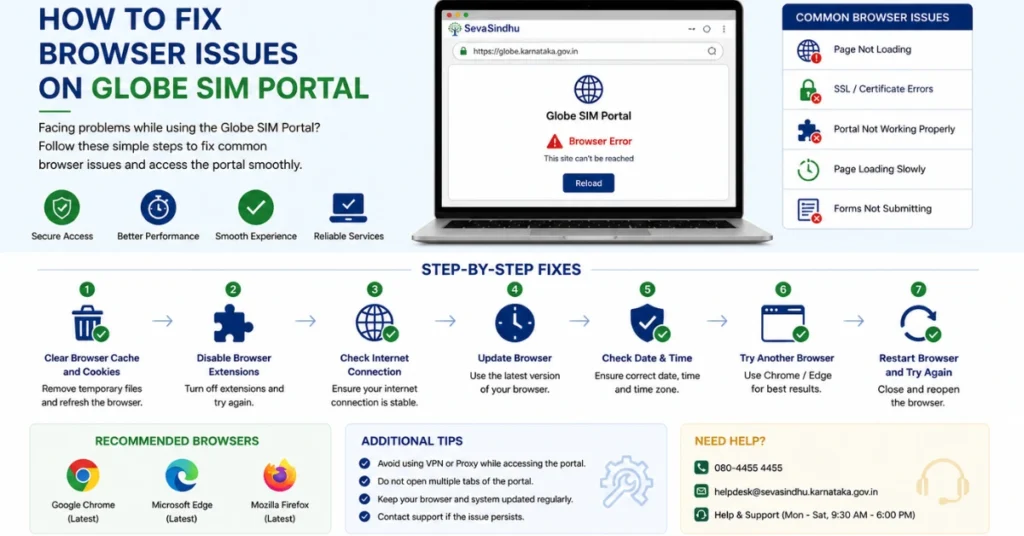
Why Do Browser Issues Happen on the Globe SIM Portal?
Several factors can cause browser issues when trying to access the Globe SIM portal. Some of the most common reasons include:
Understanding these causes helps in troubleshooting the problem effectively.
Common Browser Issues on Globe SIM Portal and How to Fix Them
Here are some of the most common browser issues you might face on the Globe SIM portal and how to fix them:
Browser Compatibility Issues
Why It Happens:
Some browsers may not fully support the features or responsive design of the Globe SIM portal. Older versions of browsers or certain browsers like Internet Explorer, may cause problems with page layout or functionality.
How to Fix It:
Use a compatible browser: The Globe SIM portal works best with Google Chrome, Mozilla Firefox, and Safari. If you’re using a different browser, try switching to one of these to see if the issue resolves.
Update your browser: Make sure your browser is up to date. Outdated browsers often struggle with modern websites, causing issues with page rendering or functionality.
To update Google Chrome, click the three dots in the top-right corner, select Help > About Google Chrome, and the browser will check for updates automatically.
For Mozilla Firefox, click the three bars in the top-right corner, go to Help > About Firefox, and update if necessary.
Tip: Google Chrome and Mozilla Firefox are generally the best options for Globe SIM portal access.
Clear Cache and Cookies
Why It Happens:
Over time, your browser stores cached data (temporary files) and cookies (small data files) to speed up page loading. However, corrupted or outdated cache and cookies can cause issues with site loading or functionality, including the Globe SIM portal.
How to Fix It:
Clear your browser’s cache and cookies:
For Google Chrome: Open Chrome, click the three dots in the top-right corner, and go to Settings.
Scroll down and click Privacy and security.
Select Clear browsing data.
Choose All time as the time range, check Cookies and other site data and Cached images and files, then click Clear data.
For Mozilla Firefox: Click the three bars in the top-right corner and go to Settings.
Under Privacy & Security, scroll to Cookies and Site Data and click Clear Data.
Select both Cookies and Cached Web Content, then click Clear.
For Safari: Go to Safari in the menu, click Preferences, and select the Privacy tab.
Click Manage Website Data and select Remove All.
Restart the browser after clearing the cache and cookies, then try accessing the Globe SIM portal again.
Tip: Clearing your browser’s cache and cookies frequently can prevent loading errors and improve performance.
Disable Browser Extensions or Add-ons
Why It Happens:
Some browser extensions or add-ons (such as ad blockers, privacy tools, or security extensions) can interfere with website functionality, blocking essential elements of the Globe SIM portal.
How to Fix It:
Disable extensions temporarily:
In Google Chrome: Click the three dots > More Tools > Extensions.
Disable or remove any extensions that might be interfering with the portal (like ad blockers or privacy tools).
In Mozilla Firefox: Click the three bars > Add-ons > Extensions.
Disable any extensions you suspect might be causing issues.
Try the portal in Incognito/Private Mode: Open a new Incognito or Private window, which disables most extensions by default. Then, access the Globe SIM portal.
Tip: Some extensions, like Adblock or Privacy Badger, may block essential parts of the Globe SIM portal. Always disable these if they are causing issues.
JavaScript Errors or Website Not Loading
Why It Happens:
The Globe SIM portal relies on JavaScript to load dynamic content (such as forms, buttons, and other features). If JavaScript is disabled or there’s an error in the code, the portal may not load correctly.
How to Fix It:
Enable JavaScript: Make sure JavaScript is enabled in your browser settings.
In Google Chrome: Go to Settings > Privacy and Security > Site Settings.
Scroll down to Content and click JavaScript. Ensure that Sites can use JavaScript is selected.
In Mozilla Firefox: Type about: config in the address bar and press Enter.
Search for JavaScript. enabled, double-click on it to set it to true.
Check for JavaScript errors: Open the Developer Tools (press F12 or Ctrl + Shift + I on Windows, or Cmd + Option + I on Mac) and check the Console tab for any JavaScript errors. If errors are displayed, try refreshing the page or clearing the cache to fix the issue.
Try a different browser: If the problem persists, try using a different browser that might be more compatible with JavaScript-heavy websites, like Google Chrome or Mozilla Firefox.
Tip: JavaScript is essential for most modern websites, so ensuring it is enabled can prevent many display and functionality issues.
Check Your Internet Connection
Why It Happens:
Sometimes, network issues can prevent the Globe SIM portal from loading or functioning properly. A slow or unstable internet connection can cause errors, timeouts, or incomplete page loading.
How to Fix It:
Ensure a stable connection: Switch to 4G or Wi-Fi for a faster, more reliable connection. If your current network is weak, try moving closer to your router or switching to a different network.
Check for internet outages: Contact your internet provider to check if there are any ongoing issues in your area.
Restart your router: If you’re on Wi-Fi, restarting your router can help fix connectivity problems.
Tip: A stable 4G connection or a strong Wi-Fi signal ensures smoother browsing and fewer errors. You can also read: Apply Offline and Sync Globe SIM Later – Step-by-Step Guide
FAQs
Final Words
Browser issues on the Globe SIM portal can be frustrating, but most problems can be easily solved with the right steps. Whether it’s an outdated browser, corrupted cache, or network problem, following the fixes in this guide will help you resolve the issue and get back to managing your Globe services.
If you continue to face issues, don’t hesitate to reach out to Globe customer support for additional assistance.


