
How Does Airplane Mode or VPN Affect Globe SIM Registration?
Globe SIM registration is an essential step to comply with the 2026 SIM Registration Act (Republic Act No. 11934). It’s required for all Globe, TM, and Globe at Home users to register their SIM cards to prevent deactivation, fraud, and ensure a secure mobile experience. While the registration process is generally simple, many users encounter issues with Airplane Mode or VPNs. These two features, although beneficial in certain situations, can interfere with SIM registration.
In this article, we will explain how both Airplane Mode and a VPN affect the SIM registration process and provide practical solutions to help you complete your Globe SIM registration without any hassles.
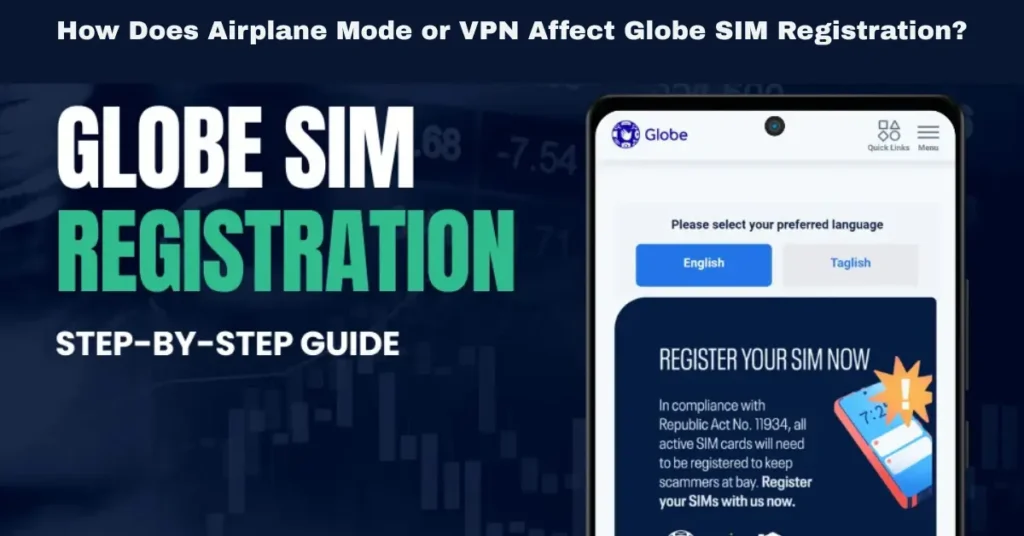
What is Airplane Mode and How Does It Affect Globe SIM Registration?
What is Airplane Mode?
Airplane Mode is a setting that disables all wireless communication features on your device, including Wi-Fi, Bluetooth, and mobile data. The purpose of Airplane Mode is to prevent devices from interfering with aircraft communication systems, but it also disables basic mobile functionalities.
Why Airplane Mode Affects Globe SIM Registration:
Globe SIM registration requires an internet connection to submit documents and verify your identity. When Airplane Mode is activated, it turns off mobile data, which is essential for updating and completing the registration process.
Globe’s system also sends One-Time Passwords (OTP) to your mobile number for verification, and these OTPs require an active cellular connection.
What Happens When You Use Airplane Mode During Registration?
When Airplane Mode is turned on, the Globe SIM registration system cannot process your submission properly because it is unable to verify your details or send the required OTP. Essentially, Airplane Mode disconnects your device from the network and prevents the registration process from going through.
How to Fix Airplane Mode Issues During Globe SIM Registration
Disable Airplane Mode
Before starting the Globe SIM registration, turn off Airplane Mode to restore your mobile data and Wi-Fi connections. This will allow the registration system to verify your details, upload documents, and send you an OTP.
Use Stable Wi-Fi or Mobile Data
Once Airplane Mode is turned off, make sure you’re connected to a stable internet source. Wi-Fi is usually preferred, but if you’re using mobile data, ensure that you have a strong signal to avoid network timeouts.
Tip: Test your connection by browsing the web before starting the registration process. This will confirm that the internet is working properly.
Ensure No Interruption During Uploads
With Airplane Mode off, ensure your internet connection remains stable throughout the SIM registration process. Uploading documents like a government ID and selfie requires a reliable connection, so avoid interruptions such as moving between Wi-Fi networks or switching to mobile data mid-process.
How Does a VPN Affect Globe SIM Registration?
What is a VPN and How Does It Work?
A VPN (Virtual Private Network) is a tool that allows you to connect to the internet via a remote server, which encrypts your data and masks your IP address. VPNs are typically used to ensure privacy and security while browsing online, but they can cause problems with SIM registration.
Why a VPN Affects Globe SIM Registration:
Location Mismatch: When using a VPN, your IP address may appear as if you’re in another country. Globe’s registration system might interpret this as suspicious activity or unauthorized access, leading to a registration failure or an authentication error.
Server Issues: A VPN could cause your data to pass through an unreliable server, leading to delays, timeouts, or failed uploads during the registration process.
What Happens When You Use a VPN During Registration?
When a VPN is active, the Globe SIM registration system might struggle to verify your location, causing errors like the mismatch of your ID or rejection of OTPs. This happens because the Globe system requires that you complete registration within the Philippines. When the VPN masks your location, the system might block or limit the registration process.
How to Fix VPN Issues During Globe SIM Registration
Disable the VPN
Before you start Globe SIM registration, turn off your VPN to allow the system to detect your actual location. This will ensure that your SIM registration process follows the correct procedure without location mismatches.
Use Your Local Network
Tip: Test your location by checking your IP address with a quick online search to ensure it reflects your actual location before starting the registration.
Use a Stable and Fast Internet Connection
Sometimes, VPNs can slow down your internet connection, which could result in failed uploads or timeouts. If you must use a VPN, disable it temporarily or make sure that your VPN connection is fast and stable during registration.
Best Practices to Ensure Successful Globe SIM Registration
1. Turn Off Airplane Mode and VPN Before Registering
2. Use a Reliable and Strong Internet Connection
3. Check Document Quality and File Size
4. Double-Check the Details You Enter
Common Problems with Globe SIM Registration and How to Fix Them
App Crashes or Freezes (Mobile)
Reason: Outdated apps, weak mobile data, or low memory can cause the app to crash.
Fix: Update the GlobeOne app, clear the cache, or reinstall the app. Ensure you’re using a stable internet.
Failed Document Uploads (Mobile and Desktop)
Reason: Large file sizes or wrong file formats can prevent successful uploads.
Fix: Resize your documents to under 2MB and ensure they’re in JPEG, PNG, or JPG format.
Location Mismatch Due to VPN
Reason: A VPN can mask your IP, making it appear as though you’re in a different location.
Fix: Turn off your VPN and ensure your local network is used during the registration process.
OTP Not Received (Mobile)
Reason: Network issues or delayed SMS delivery can cause OTP failures.
Fix: Ensure you’re connected to strong mobile data and request a new OTP if it expires.
Tips to Avoid Registration Issues
Ensure Correct ID Details
Double-check that the name, ID number, and date of birth match exactly as they appear on your government-issued ID. Globe SIM registration is very sensitive to mismatches.
Use Clear, High-Quality Photos
Your selfie and ID photo must be clear and visible with no glare, shadows, or obstructions. Make sure the photos are under 2MB in size.
Follow the Official Process
Use the official Globe SIM registration page or GlobeOne app to ensure your details are correctly submitted.
Avoid third-party websites or unofficial registration portals.
FAQs
Final Words
Whether you’re using Airplane Mode or a VPN, these settings can affect the Globe SIM registration process. To avoid issues, always turn off Airplane Mode, disable VPN, and make sure you have a stable internet connection. By following these tips and ensuring the correct information is entered, you’ll be able to register your Globe SIM with ease.
If you encounter problems during SIM registration, don’t hesitate to contact Globe customer support or visit a Globe store for assistance.


