
Globe SIM Registered but Showing “Unregistered” Fix (2026)
Are you seeing “Unregistered” on your Globe SIM even after completing the registration? Don’t worry — you’re not alone. This happens to many users, and in most cases, it’s easy to fix. In this article, you’ll learn what it means, why it happens, and exactly how to solve it — step by step.
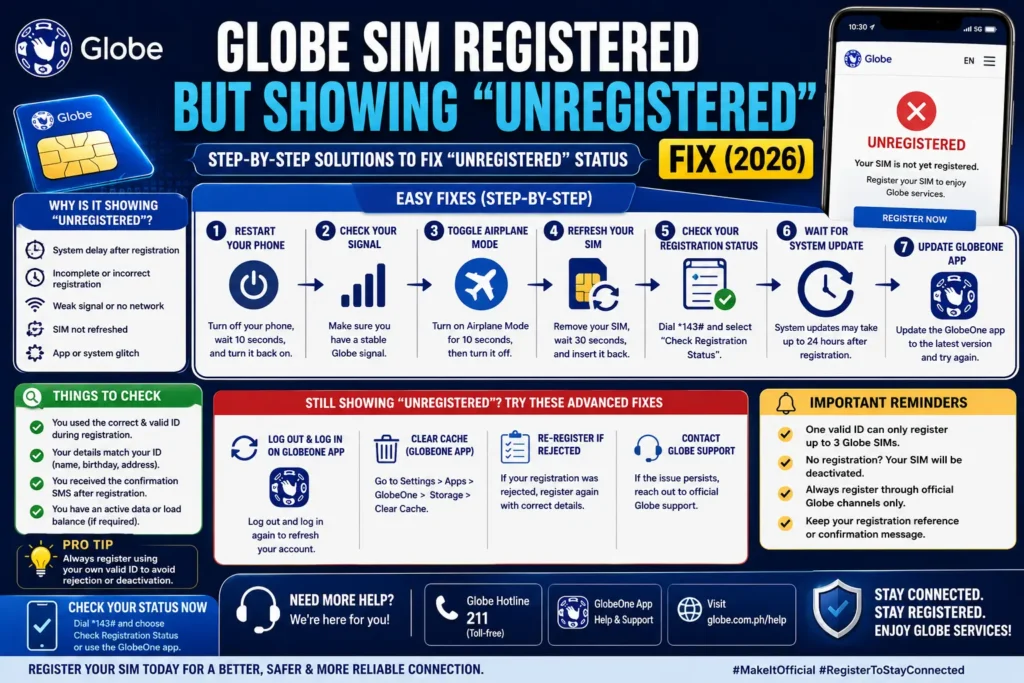
What the “Unregistered” Message Actually Means
When you register a Globe SIM, the system checks your details (name, ID, selfie) and links them to your mobile number. Under the Philippine SIM Registration Law (Republic Act No. 11934), all SIM cards — Globe, TM, and Globe At Home — must be registered before they can be used.
Sometimes, even after you successfully submit the registration form, the app or phone dashboard still says Unregistered — but that doesn’t always mean your SIM status is wrong.
Common Reasons Your SIM Shows “Unregistered.”
Here are the usual causes:
App Display or Sync Issue
The GlobeOne app might not update the SIM status in real time.
What to try:
Close and re‑launch the app
Update the app to the latest version
Clear the app cache
Log out and log in again
Many users see “Unregistered” even after successful registration because the app hasn’t refreshed properly.
Network/System Delay
After you register, Globe’s back‑end system needs time to update your SIM status across all platforms. This can take a few hours or even a couple of days.
Try this:
Restart your phone
Wait 24–48 hours
Check again
Most of the time, the status shows correctly after this short delay.
Registration Didn’t Complete Fully
If your registration wasn’t completed — due to a missing photo, unclear selfie, or mismatched details — Globe may not log it correctly.
Signs of this problem:
You didn’t receive a confirmation SMS
Your ID upload failed
You never reached the final “Success” screen
In these cases, you may need to re‑register.
Step‑by‑Step Fix Checklist
Follow these steps one by one to fix the issue:
Confirm Your Registration Status
Instead of relying only on the app, do this:
Check your SMS — look for a registration confirmation message
Try the official Globe SIM registration portal
Check your status in GlobeOne under “My Account.”
If you have a confirmation message, your SIM is registered even if the app shows “Unregistered.”
Refresh the GlobeOne App
Try these:
Update the app from the Play Store or App Store
Clear app cache (Android: Settings → Apps → GlobeOne → Clear cache)
Log out → Close the app → Open it again → Log in
Reinstall the app if nothing changes
This helps the status update correctly.
Restart Your Phone
Sometimes, all your network settings need a reset.
Turn off your phone
Wait 10–20 seconds
Turn it back on
This refreshes your connection and helps sync your SIM status.
Wait and Check Again
Cloud systems don’t always update instantly. Give it up to 48 hours — most delays resolve themselves in that time.
Re‑Register If Needed
You only need to re‑register if your registration didn’t finish properly or if you didn’t receive a confirmation SMS.
When re‑registering:
Use good lighting for your selfie
Upload a clear photo of your ID
Enter your full correct name exactly as on your ID
Why This Happens Often
This “Unregistered” glitch is usually a status display problem, not a real failure in your registration. Many Globe users report seeing the wrong status in the app, but the SIM still works perfectly — calls, texts, and data all work normally. You can also read: Globe SIM Selfie Upload Failing? Easy Fixes for 2026
Important Tips
Always save your registration reference number — you might need it later.
Don’t click on random SIM registration links — use the official Globe portal.
Keep good photos of your ID and selfie — blurry uploads often cause rejections.
FAQs
Final Words
If your Globe SIM shows “Unregistered” after registration, don’t panic. Most of the time, the SIM is already registered — it’s just not showing correctly in the app. Follow the steps above, give it a little time, and you’ll likely see the correct status soon.
This issue is common and usually harmless — the key is making sure you finish the registration properly and that Globe’s system has enough time to reflect your status everywhere.


