
Globe SIM Selfie Upload Failing? Easy Fixes for 2026
Trying to complete your Globe SIM registration and getting stuck at the selfie step? It’s one of the most common problems people face right now — especially with the 2026 SIM registration deadline under the Philippine SIM Registration Act (Republic Act No. 11934).
You’re not alone. When the selfie upload keeps failing, it can feel frustrating and confusing. But don’t worry — this guide breaks down why it happens, what you can do, and how to make sure your next upload works smoothly.
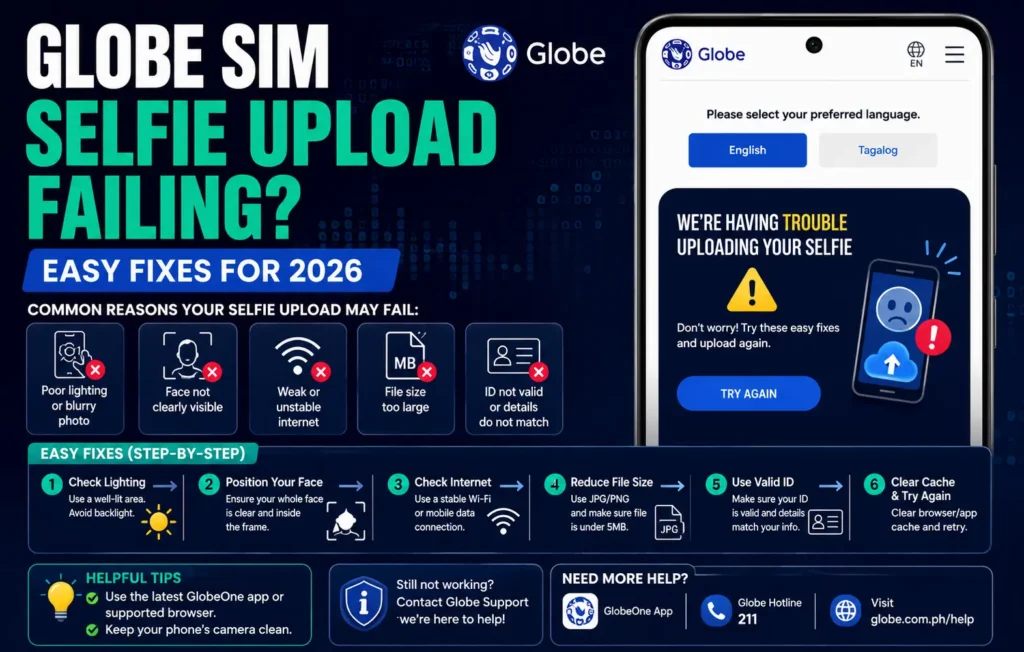
Why Globe Requires a Selfie
First, let’s clear up why Globe asks for a selfie during SIM registration:
To verify your identity and make sure the person registering the SIM is you.
To match your face with the ID you upload.
To prevent dormant SIM fraud, fake registrations, and scams.
To comply with the SIM Registration Act and protect all subscribers.
This selfie is more than a photo — it’s a security check. If it doesn’t meet the system’s standards, the upload can fail.
Common Reasons Selfie Uploads Keep Failing
Even though Globe’s registration system looks simple, there are hidden rules your photo must follow. Let’s go through the most common reasons your upload keeps getting rejected.
The Photo Is Blurry or out of Focus
If the system can’t read your face clearly, it will reject the upload.
That happens when:
You’re too close or too far from the camera.
Your phone camera didn’t focus properly.
You moved while the photo was taken.
Fix: Take the photo again in good lighting, hold your phone steady, and wait for your camera to focus before clicking.
Poor or Uneven Lighting
Bad lighting is a huge reason selfie uploads fail:
Lighting that’s too dark or too bright creates shadows.
Backlight (light behind you) can darken your face.
Harsh lighting creates glare on your ID.
Fix: Stand in natural light (like near a window) and face the light source. Even lighting on your face and ID improves recognition.
ID Isn’t Fully Visible or Legible
Your selfie must show your face and your ID clearly. If the ID text, photo, or details are cut off, blurred, or covered by glare, the system rejects it.
Fix: Hold your ID flat with all four corners visible. Make sure the text and photo are readable in the same frame as your face.
Wrong Camera Settings or Filters
Some phone cameras apply filters, beauty modes, or enhancements by default. These change your appearance and distort the image.
Fix: Use the plain camera mode (no filters, no beauty mode). A natural photo is easier for verification.
Upload Interruptions (Weak Internet / Signal)
Even if your photo is perfect, upload interruptions can cause failures:
Weak mobile signal
Slow or unstable Wi‑Fi
Temporary connection drops during upload
Fix: Use a strong 4G/5G signal or reliable Wi‑Fi. If your internet is slow, wait until you’re in a better coverage area.
File Size or Format Issues
Sometimes the file is too large or the wrong format, causing rejection:
Globe usually supports JPEG/PNG
Very large files may time out
Fix: Take smaller photos, avoid very high resolution, and make sure the format is JPEG or PNG.
Multiple Upload Attempts Without Reset
When you try uploading one photo after another without refreshing or resetting the form, the system can glitch.
Fix: Refresh the registration page or start a fresh session before uploading again.
Step‑by‑Step Solutions You Can Try Now
Here’s a checklist to help you fix the selfie upload issue:
Prepare Before Taking the Photo
Fill out all other fields before you request the selfie upload so you can take it quickly.
Choose the Best Spot for Lighting
Natural light is best. Stand facing a window or outside. Avoid overhead lights that cast shadows.
Use the Back Camera If Possible
The rear camera on phones often has better resolution. Ask a friend to take your selfie if necessary.
Clean Your Camera Lens
A smudged lens can make blurry photos — wipe it gently before taking your selfie.
Check Your Internet Strength
Make sure you’re in an area with a strong signal. Pause other downloads or uploads before retrying.
Restart Your Browser or App
If the upload keeps failing, close the browser/app and try again.
Advanced Tips That Really Help
Here are some lesser‑known tricks that work well:
Use GlobeOne App Instead of a Browser
Many users find the GlobeOne app more stable than the web portal — especially for uploads.
Take Several Test Shots First
Don’t upload the first selfie. Take a few test photos and choose the clearest one.
Ask Someone to Help
Sometimes, a second person holding the phone and framing the shot makes all the difference.
Try at Different Times
Heavy peak times may slow Globe’s servers. Try early morning or late evening when traffic is lower.
If Nothing Works — What You Can Do
If you’ve tried everything and the selfie upload still won’t work:
They can review your photo and guide you step by step. You can also read: Prevent OTP Delays During Globe SIM e-KYC – Simple Fixes
FAQs
Final Words
Globe SIM rules have changed the way registrations work, and the selfie upload step is a big part of that. It looks simple, but the system is strict because it’s designed to protect you.
The good news? Most selfie upload problems can be fixed with better lighting, a clear frame, and steady captures.


