
Solve Common Globe SIM Portal Errors – Complete Guide
If you’ve ever encountered errors while using the Globe SIM portal, whether you’re trying to register your SIM, check your balance, or activate a promo, you’re not alone. The Globe SIM portal is a convenient way to manage your Globe services, but sometimes you might face issues that prevent you from completing tasks successfully.
The good news is that most of these errors can be easily fixed. In this article, we’ll guide you through the common Globe SIM portal errors and provide you with simple step-by-step solutions to resolve them quickly.
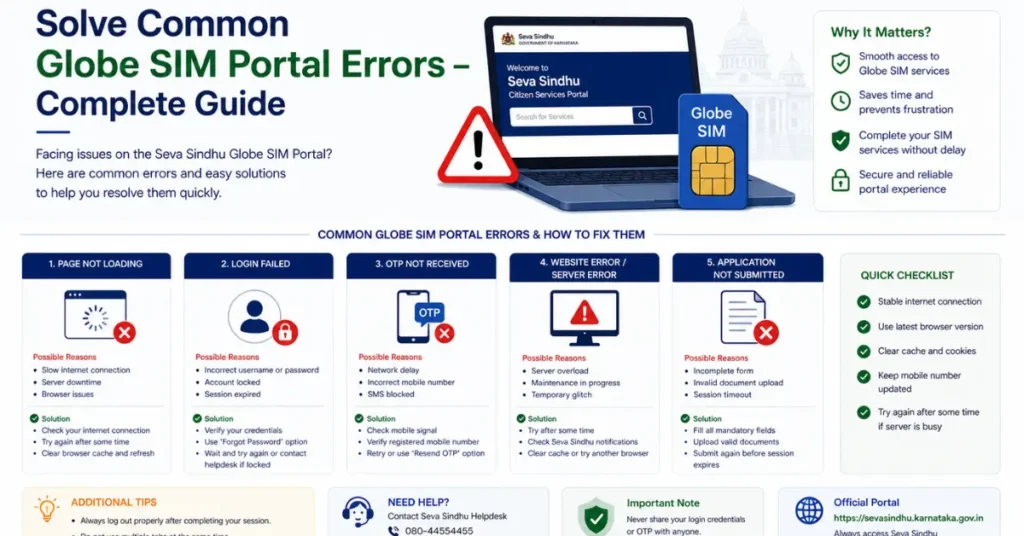
Why Do Errors Occur on the Globe SIM Portal?
Before we dive into the solutions, let’s first explore why errors happen on the Globe SIM portal:
Network issues: A weak or intermittent connection can cause errors during the login or registration process.
Incorrect account details: If the wrong information is entered (e.g., wrong mobile number, wrong account number, etc.), you might see an error message.
Portal updates or downtime: Sometimes, the portal undergoes maintenance or updates, causing temporary errors or access issues.
Browser compatibility: Some web browsers or outdated apps may not be fully compatible with the Globe SIM portal, causing it to malfunction.
Globe system errors: Globe’s servers may occasionally experience overload, leading to slower processing times or temporary outages.
Understanding the cause of the error can help you find the quickest fix.
Common Globe SIM Portal Errors and How to Fix Them
Here are some of the most common errors users face on the Globe SIM portal and their respective solutions.
Error: “Incorrect Account Details”
Why It Happens:
This error occurs when the information you enter (such as your Globe number, account number, or SIM card number) is incorrect.
How to Fix It:
Double-check your details: Ensure that the Globe number or account number you are entering is correct. Verify the SIM card number if applicable.
Update your details: If you recently changed your mobile number or account details, make sure these changes are reflected in the Globe portal.
Use the correct format: Sometimes, the format of the number may cause issues. Ensure you enter the mobile number with the country code (e.g., +63 for the Philippines).
Reset your account details: If you’re still having trouble, you can try resetting your Globe account details by contacting Globe customer support.
💡 Tip: If you’ve recently changed your SIM card or phone, verify that your number is correctly registered in the Globe system.
Error: “Service Unavailable” or “Portal Down”
Why It Happens:
This error usually occurs when the Globe SIM portal is undergoing maintenance, experiencing high traffic, or dealing with temporary server issues.
How to Fix It:
Check for maintenance announcements: Visit Globe’s official social media accounts or their website to see if there is an ongoing system update or scheduled maintenance.
Wait for a few minutes: If the portal is down due to high traffic, it’s best to wait and try again later when the traffic load decreases.
Try using the mobile app: If the web portal is down, you can use the GlobeOne app, which may still be working without issues.
Clear your browser cache: In some cases, clearing your browser’s cache and cookies can resolve errors related to temporary glitches.
Tip: Check Globe’s website or social media updates for any notices about system downtime. These announcements usually mention the estimated time of resolution.
Error: “OTP Not Received” or “OTP Delayed”
Why It Happens:
The OTP (One-Time Password) is required to verify your identity during registration or other services on the Globe SIM portal. If the OTP doesn’t arrive, it may be due to issues with your network connection, email address, or phone number.
How to Fix It:
Ensure a strong network connection: Weak or unstable networks can cause delays in receiving OTPs. Switch to a strong 4G connection or a reliable Wi-Fi network.
Check your mobile number and email: Make sure that the contact details (mobile number or email) you’ve registered with Globe are correct.
Clear your spam folder: Sometimes OTP messages are mistakenly marked as spam. Check your spam/junk folder if you’re not receiving it via email.
Request a new OTP: If you haven’t received the OTP after a few minutes, click “Resend OTP” on the portal to request a new one.
Contact Globe support: If the OTP still hasn’t been received, contact customer support to ensure no account-related issues are blocking the OTP.
Tip: If you’re using email for OTP, check if your email provider is blocking or filtering OTP messages. Adding Globe’s email address to your trusted senders can help.
Error: “Invalid Promo or Service”
Why It Happens:
This error occurs when the promo code or service offer you’re trying to activate doesn’t exist, has expired, or is not compatible with your current plan.
How to Fix It:
Double-check the promo details: Ensure that the promo code is valid and hasn’t expired. You can check current offers through the GlobeOne app or the Globe website.
Ensure eligibility: Some promos are only available for prepaid or postpaid customers. Make sure you’re eligible for the offer.
Try another promo: If the promo doesn’t work, consider selecting a different, compatible promo or service from the available options.
Contact Globe customer support: If you’re certain the offer should be working, contact Globe to resolve any system glitches.
Tip: Make sure your SIM card is active and has enough balance to use certain promos. You can also read: Apply Offline and Sync Globe SIM Later – Step-by-Step Guide
Error: “Session Expired” or “Timeout”
Why It Happens:
This error typically occurs when your session on the Globe SIM portal has expired due to inactivity or if you were logged out for security reasons.
How to Fix It:
Log in again: Simply re-enter your Globe account details and start the process again.
Avoid prolonged inactivity: Make sure you’re actively engaging with the portal. If you’re not making progress for a few minutes, the session might expire.
Clear browser cache: Sometimes clearing your browser’s cache and cookies can help refresh the session and avoid timeouts.
Tip: If you’re using the GlobeOne app, you may experience fewer timeouts compared to the portal on your browser.
FAQs
Final Words
Encountering errors on the Globe SIM portal can be frustrating, but most of them can be resolved quickly with the right steps. Whether you’re facing issues with incorrect details, OTP delays, or promo activations, following the tips in this guide will help you navigate and resolve common errors.
Always make sure to keep your account information up-to-date, clear your cache regularly, and reach out to Globe customer support if you need further assistance.


